Invoice Settings in Jova POS
1) Invoice Settings Page View
In the Invoice Settings section, you can manage invoice templates to be used for transactions.
Steps:
- Access the Invoice Settings page.
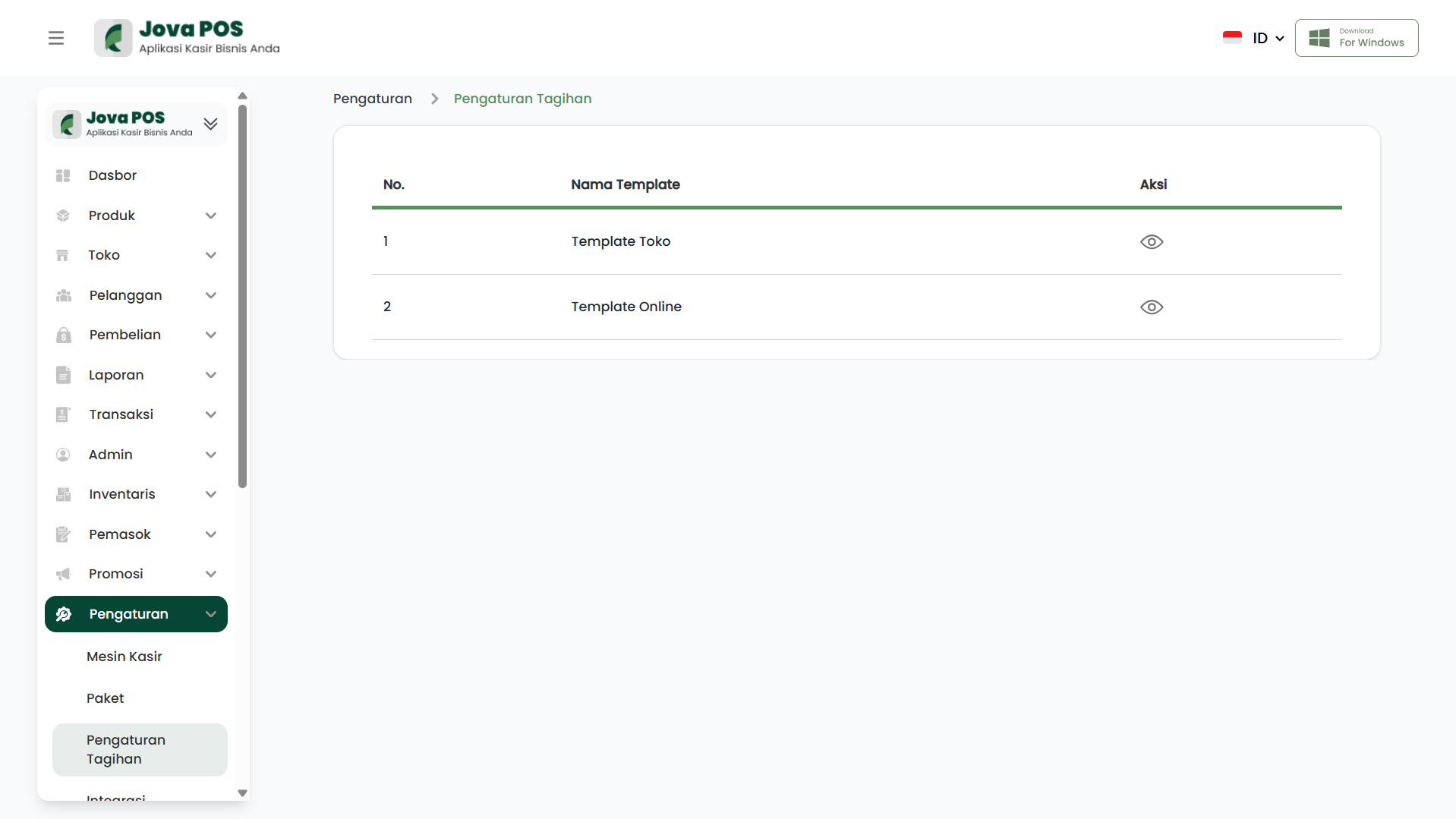
- On this page, you will see a list of Template List that have been created.
Invoice Settings List View:
- Template Name: The name of each existing invoice template.
- Action: Button to edit or view details of the created invoice template.
Example Invoice Settings List View:
2) Click Action Button to Configure Invoice Template
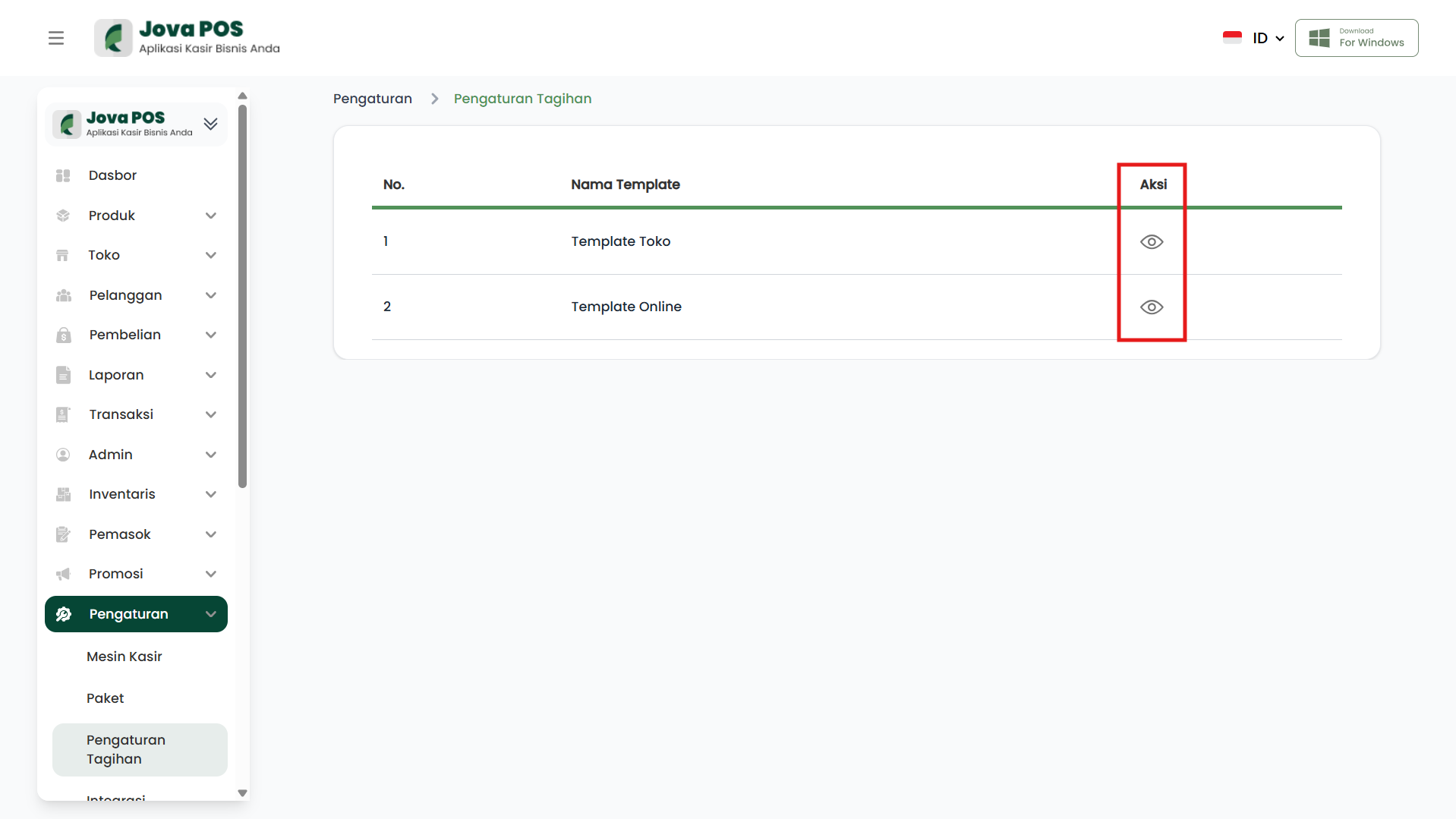
To further configure an invoice template, click the Action button next to the template name you want to modify.
Steps:
- Select the template you want to configure.
- Click the Action button (eye icon) to view or edit the template.
- You can customize settings such as Product Name, Logo, Social Media, and Store Name as needed.
Example Action Button View:
3) Store Template
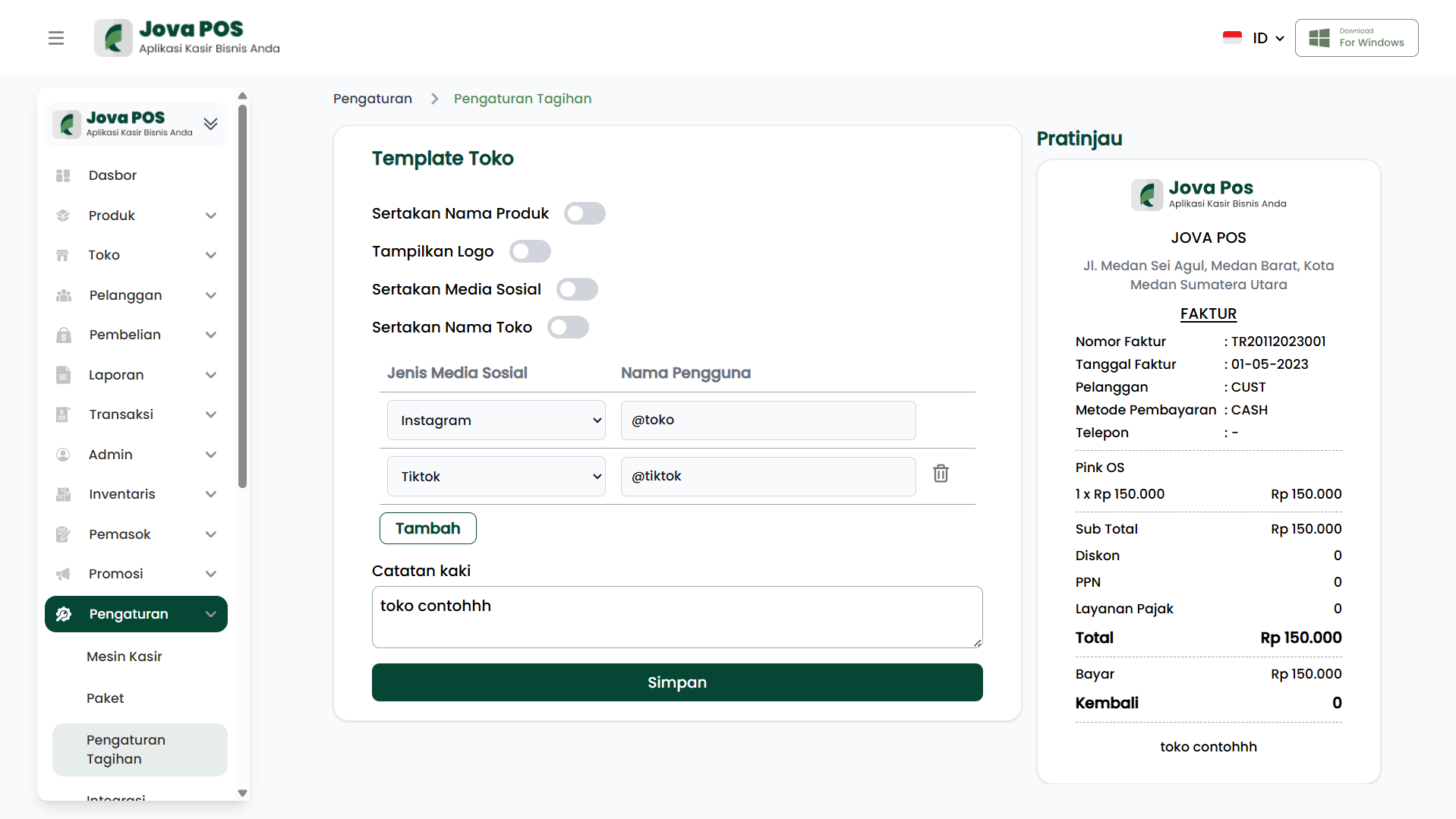
The Store template is used to create invoice templates that include the store name on the invoice or receipt.
Steps:
-
Select Store Template from the list.
-
Enable or disable the following options:
- Include Product Name: Display product names on the invoice.
- Show Logo: Display the store logo on the invoice.
- Include Social Media: Display social media accounts.
- Include Store Name: Display the store name on the invoice.
-
Add social media information (e.g., Instagram or TikTok) and username.
Example Store Template View:
4) Online Template
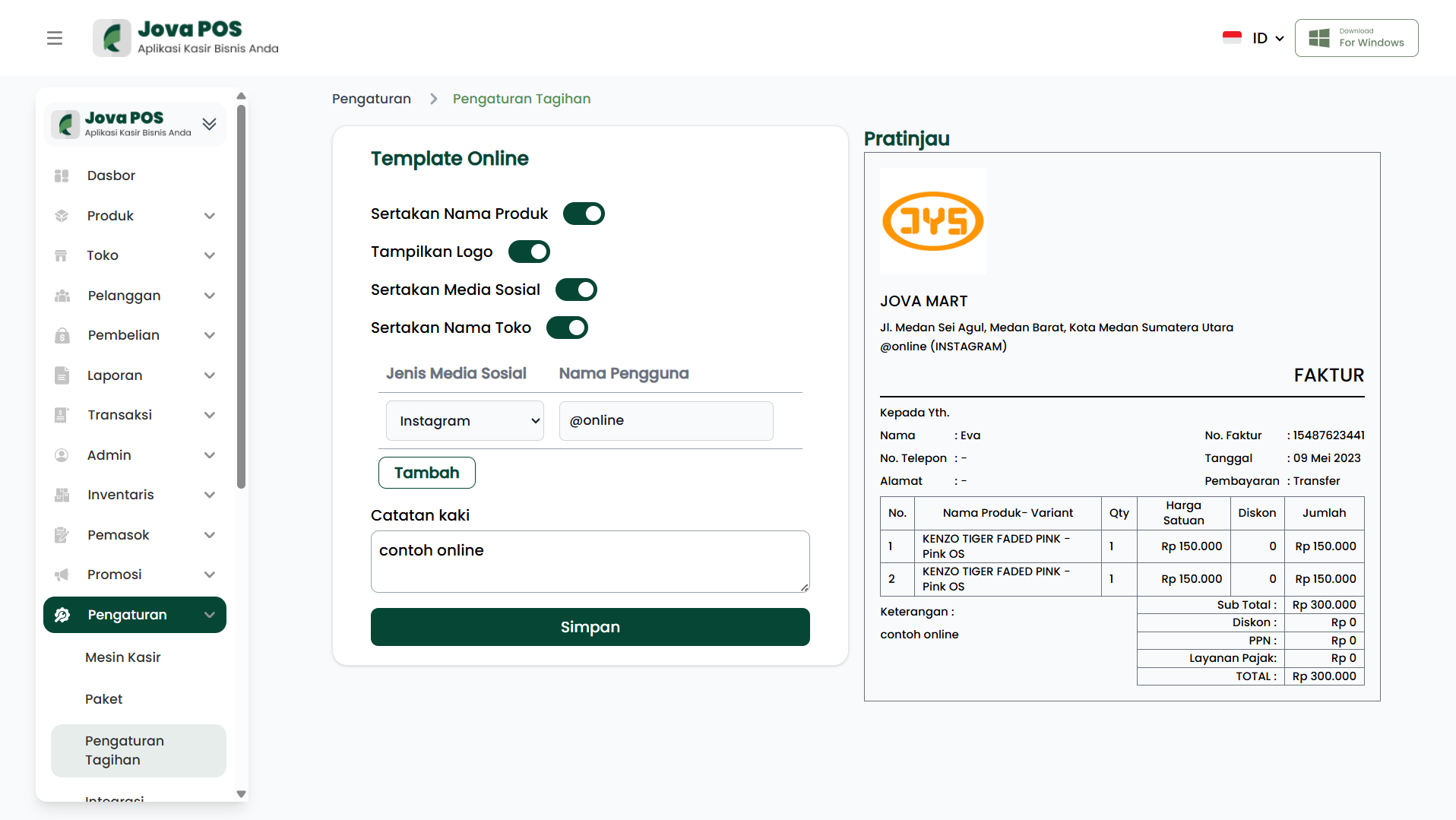
The Online template is used for invoices related to online transactions.
Steps:
-
Select Online Template from the list.
-
Enable or disable the following options:
- Include Product Name: Display product names on the invoice.
- Show Logo: Display the store logo on the invoice.
- Include Social Media: Display social media accounts.
- Include Store Name: Display the store name on the invoice.
-
Add social media information such as Instagram and TikTok along with relevant usernames.
Example Online Template View:
By following the steps above, you can easily manage and customize invoice templates in Jova POS according to your business needs.